

LinX (pronounced “Links”) is an orchestration service that allows you to collect information from Customers and perform multiple business activities in a single automated workflow.
Using minimal Customer contact details, such as a mobile number, LinX manages the required communications and processes to securely collect information from your Customers and perform any combination of activities, such as:
LinX provides push notifications to the Business Account with updates on account creation and transaction status events. You can enable push notifications for a Business Account on the RocketKOR Portal.
LinX supports a variety of use cases, such as:
Use the RocketKOR APIs or Portal to create a LinX workflow for a new or existing Customer. The workflow defines the activities RocketKOR will execute for the Customer.
The following diagram shows the process to execute a LinX workflow.
Click Image to View Full Size
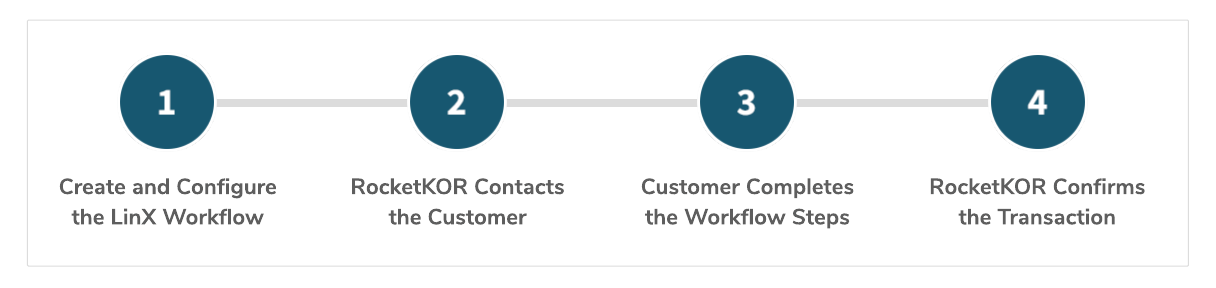
LinX Workflow Request Life Cycle
You can create a LinX workflow for a new Customer or an existing RocketKOR Customer — all you need is the Customer’s mobile number.
Use the RocketKOR APIs or Portal to create the workflow and define the activities to execute for the Customer. You can combine any of the following activities:
You can create a new workflow from scratch or use a LinX workflow template. For details, see LinX Workflow Templates Overview.
When you submit the LinX workflow request using the RocketKOR APIs or Portal, RocketKOR sends a link directly to the Customer via SMS. The Customer will use this link to review and complete the steps in the LinX workflow.
Note that the Customer must complete the workflow before the link expires. Customers will receive regular SMS reminders about the link expiry date until they successfully complete the workflow. You can also use the APIs or Portal to extend the link expiry period and to resend the notification to the Customer, as long as the workflow is still active.
When the Customer clicks the link they received from RocketKOR, they are directed to the secure RocketKOR Gateway where they can review and confirm the workflow activities. For example, the Customer may be prompted to:
If the Customer declines a transaction, they are prompted to select a predefined reason (such as incorrect amount) or specify a reason.
As the Customer completes the LinX workflow steps, RocketKOR executes the activities, such as creating or updating the Customer Account, creating a new Financial Account, storing the Customer’s acceptance of legal documents, and creating a transaction.
If the LinX request includes a transaction, the Customer will receive SMS notifications regarding the transaction status.
If push notifications are enabled, RocketKOR will send status updates to the Business Account regarding account creation and transaction status events.
Step into the future of Finance with RocketKOR! Simplify payments, banking, lending, and data analytics using our versatile KOR Platform.
A Rocket Financial Inc. company
@ 2024 RocketKOR, Inc. All rights reserved.


