RocketKOR’s Push Notifications feature allows you to receive notifications for system and platform events. These notifications are sent via webhooks.
Use the RocketKOR Portal to set up push notification subscriptions for a Business Account. These subscriptions allow you to receive notifications for different events within the Business Account. Subscriptions can be created for single or multiple event types. For instance, you can choose to receive notifications for all transaction status changes or just a specific status change.
Push notification event types are described in the API Reference.
Managing Push Notifications
Push notification subscriptions are created and managed in the RocketKOR Portal. You can create multiple subscriptions for a Business Account.
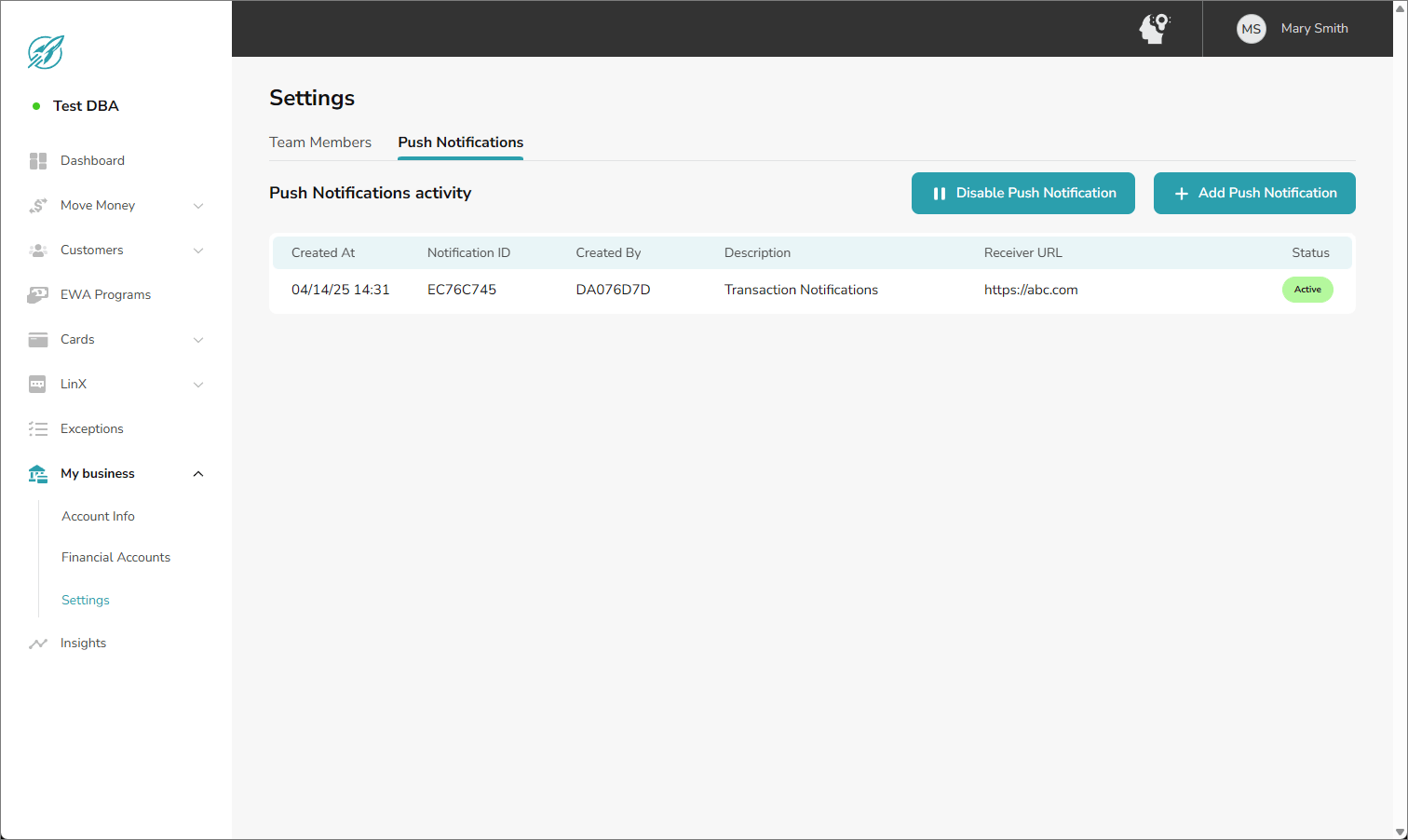
To access push notifications, click My business, then click Settings. Click the Push Notifications tab.
Click Image to View Full Size
Push Notifications tab
Create a subscription
Click Add Push Notification.
Enter the following information.
Description Enter a short description of the push notification purpose.
Receiver URL Enter the webhook endpoint where the push notification will be sent.
Click Submit. The push notification subscription is created.
Edit a subscription
You can modify any of the settings for a push notification.
Click the push notification. The push notification details are shown.
Click Edit.
Make your changes, then click Submit.
Suspend or unsuspend a subscription
If you want to temporarily pause push notifications, you can suspend the push notification subscription. When you’re ready to resume notifications, unsuspend the subscription.
Click the push notification. The push notification details are shown.
Click Suspend to temporarily pause the push notification. or Click Unsuspend to reactivate the push notification.
Click Confirm.
Remove a subscription
You can delete a push notification that you no longer require.
Click the push notification. The push notification details are shown.
Click Remove.
Click Confirm.
Disable all subscriptions
You can temporarily pause all push notifications for the Business Account.